How to Set Up Your Cortex Workspace in 3 Minutes
Download, sign in, and open your first project folder in Cortex Workspace. A step-by-step onboarding guide with screenshots for macOS and Windows.
1. Download and Install
Go to https://withcortex.ai/download and download the correct version for your device (e.g. MacOS, Windows).
2. Sign In
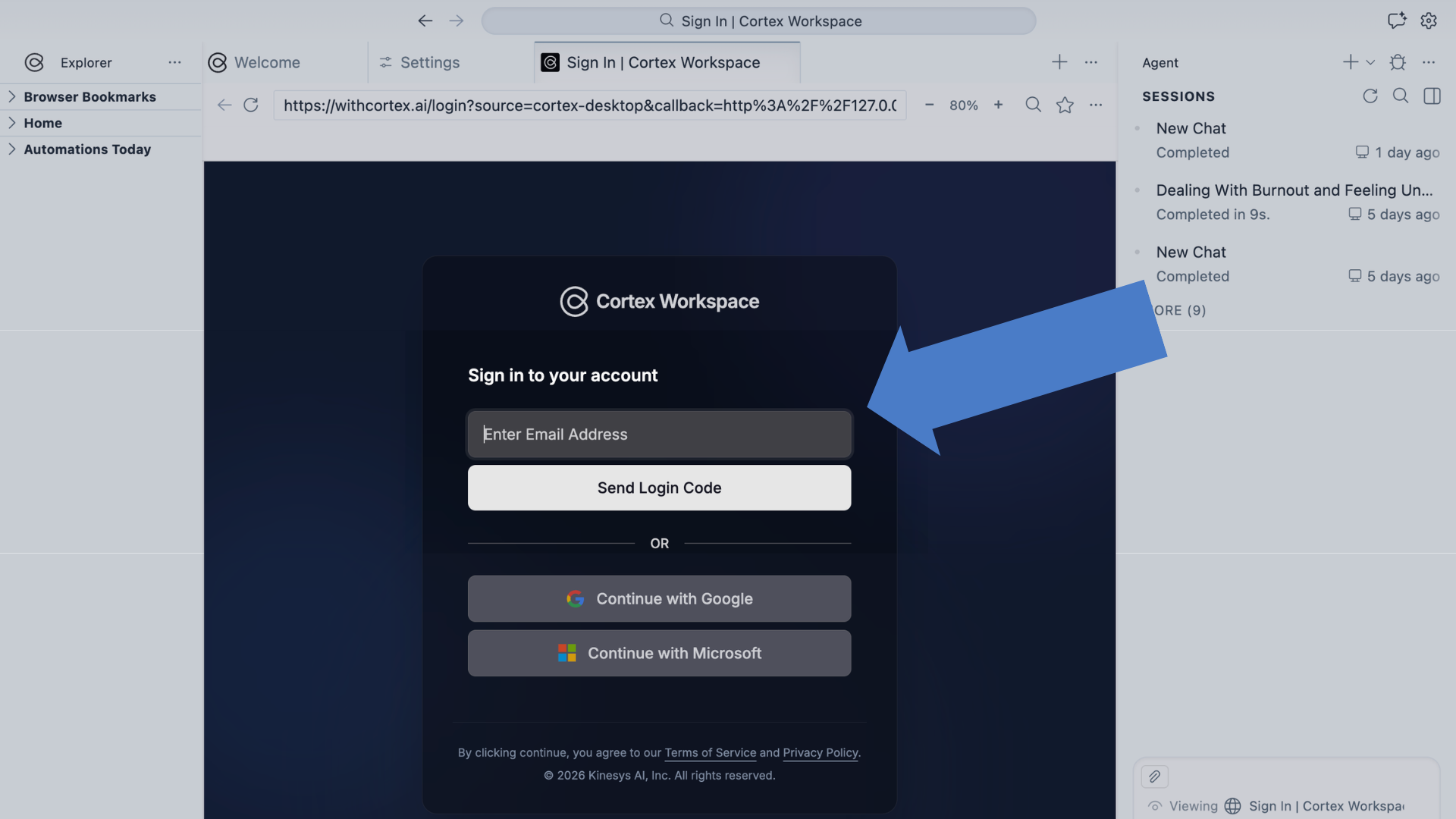
Sign in with your registered email to access the AI and get started. Choose either option below:
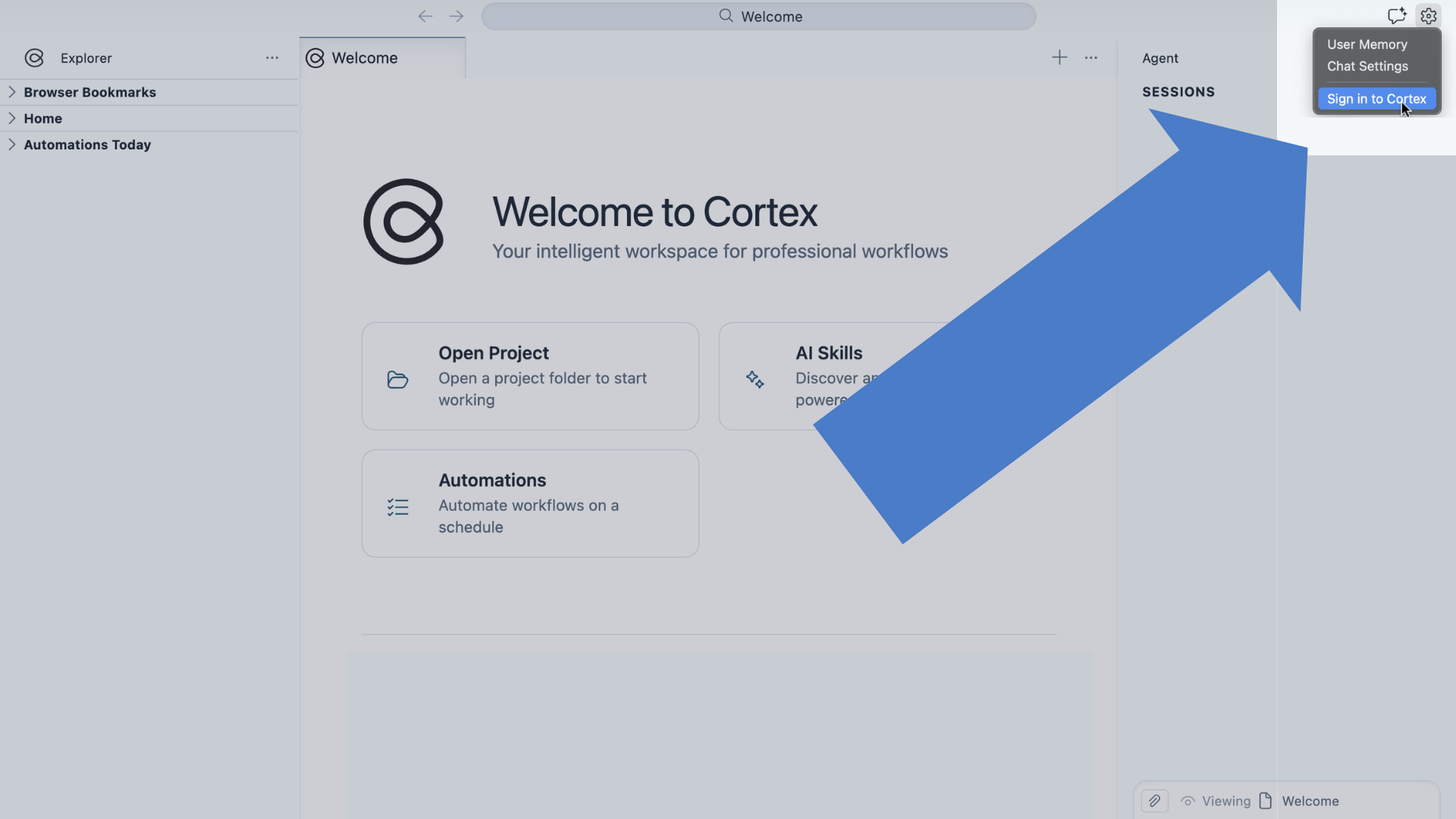
- Via Settings: Go to the top-right corner and select Settings → Sign in to Cortex.
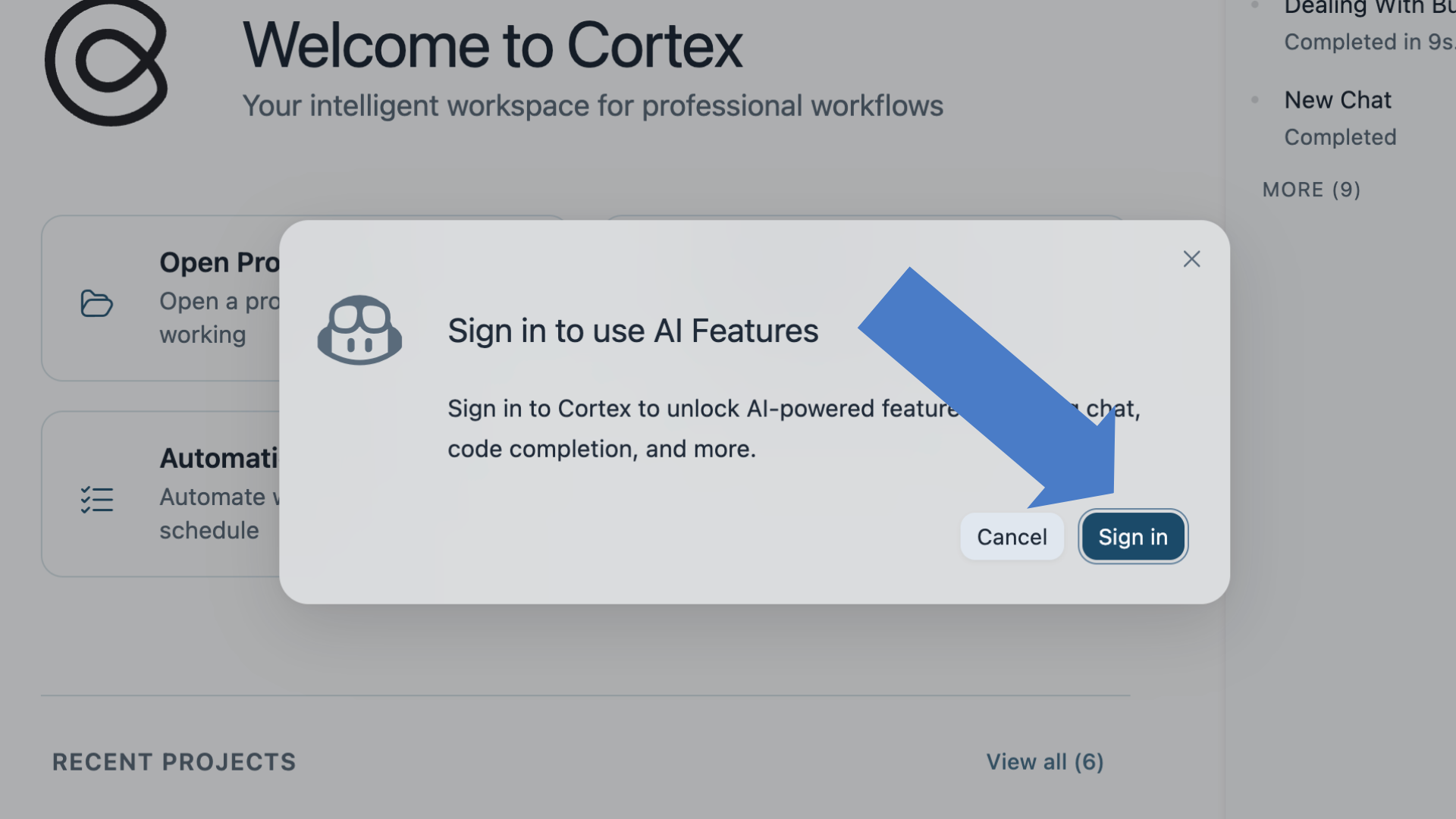
- Instant Prompt: Just start typing a message to the AI, and a sign-in prompt will appear automatically.
3. Set Up Your Workspace
Open a project folder to begin working.
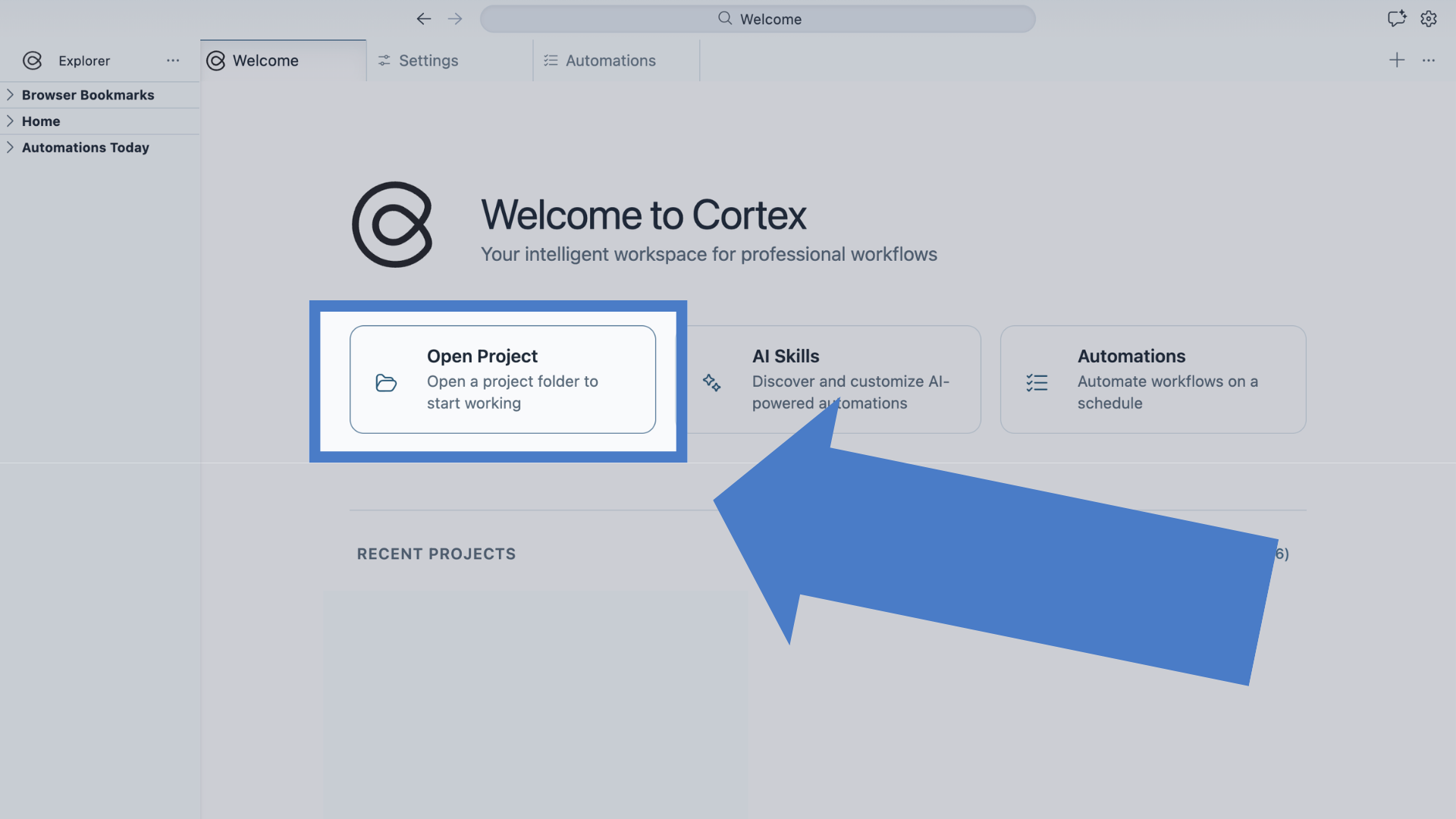
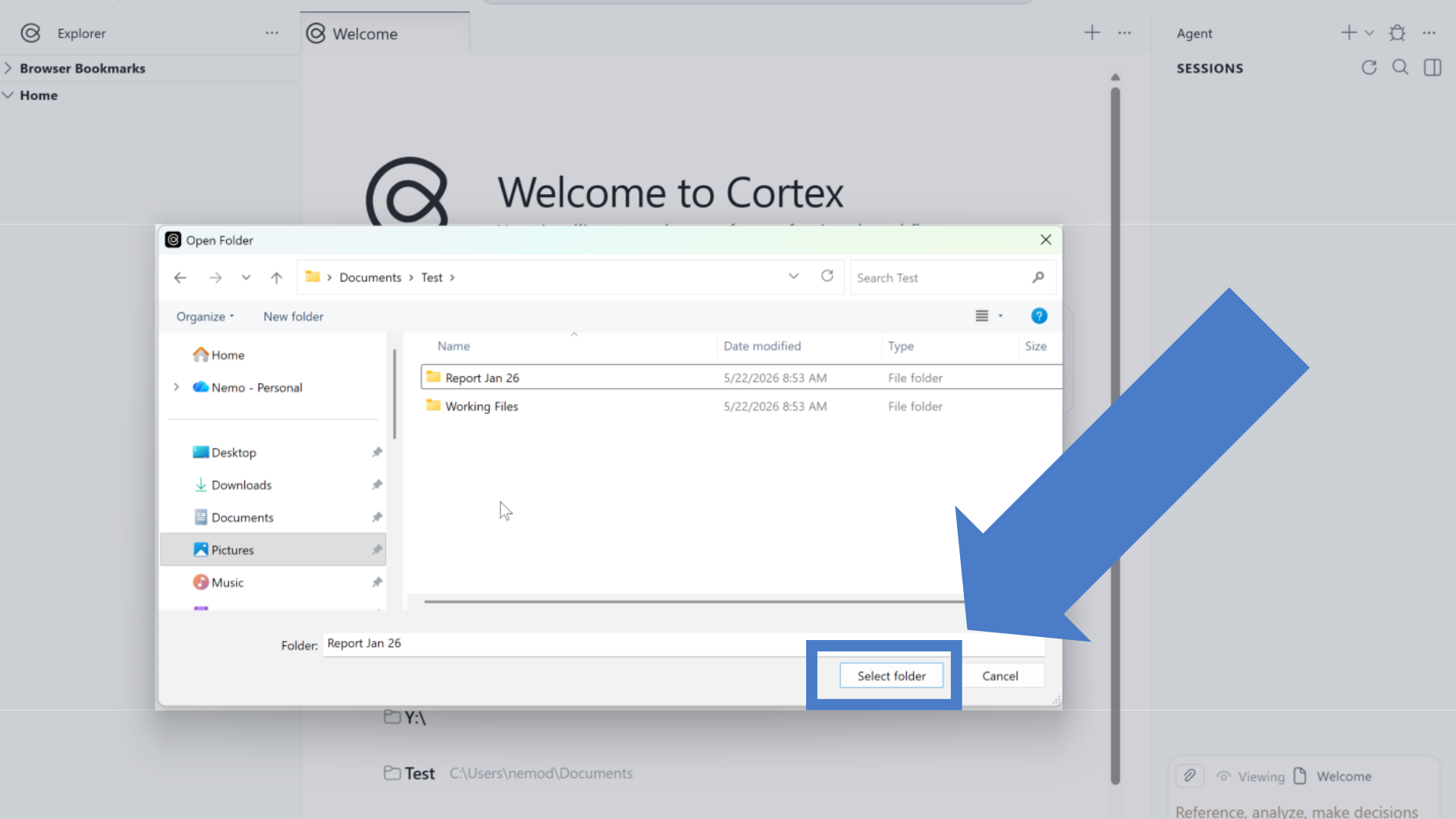
Think of a Project as a completely self-contained workspace. When you select a local folder, that folder becomes the "ingredients" and immediate context for the AI.
Just like using two different Google Chrome profiles (e.g., Personal vs. Work), your projects are completely separated. The tabs you open, your file history, and your AI chat sessions stay locked inside that specific project and cannot be migrated to another.
4. Navigate Your Workspace
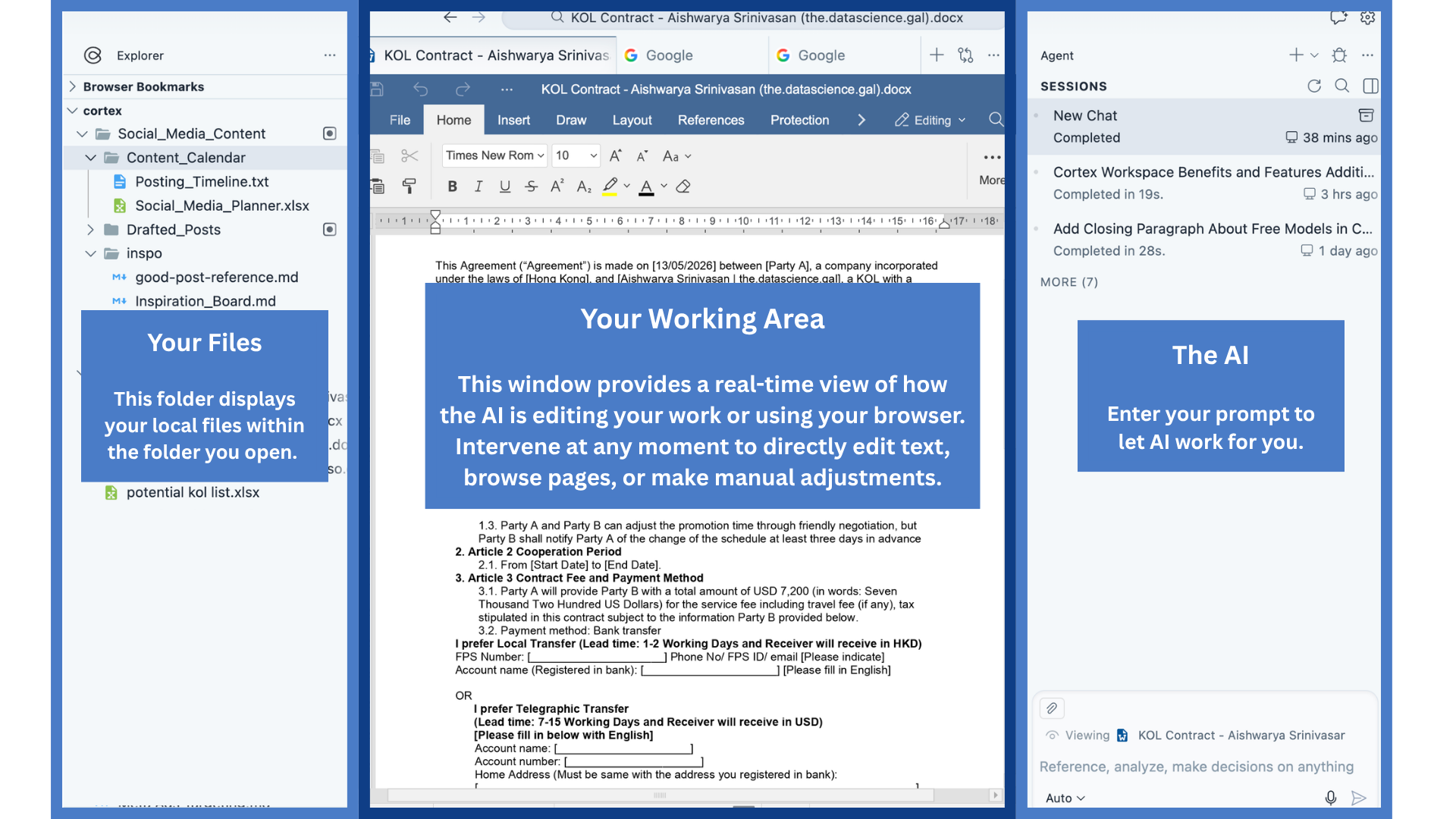
When you open a project folder, Cortex launches a dedicated, three-panel window designed for seamless collaboration:
Left panel — Your Files
The Left Panel displays your local directory, allowing you to create, rename, or delete files manually or with the help of the AI.
The files in this panel automatically serve as the context window for your AI sessions within this workspace. You do not need to manually attach or upload any file again because the AI will automatically find and learn from the relevant files to do your work.
Furthermore, because Cortex opens your folder directly, everything runs entirely on your device and saves instantly, meaning there is nothing to download and your data stays completely private.
Middle panel — Your Working Area
The Middle Panel is where you monitor and collaborate with the AI. You can open files from the left panel, browse websites, or log in to your work portals. You can watch the AI work in real time, and step in at any moment to edit content or make manual adjustments directly.
Cortex works alongside the tools you already use, including Microsoft Office, Google, PDFs, and any web app, so taking over and making small changes is always easy.
Right panel — The AI
The Right Panel is where you prompt the AI to execute tasks. From this panel, you can instantly switch between the world's most powerful models, including GPT, Claude, and Gemini, all covered under a single Cortex subscription.
This panel also houses your project's chat session history. Because all workspaces are completely isolated, this history belongs exclusively to this project, ensuring your workflows remain organized and distinct.
5. You're All Set!
What sets Cortex apart is how it handles the kind of work that actually piles up. It can process dozens of documents in a single command, works inside the tools you already use every day rather than asking you to learn something new, and keeps you in control at every step.
Your files never leave your device, and Cortex is SOC 2 Type II certified, so your work stays yours.
Try Your First Prompt:
"Rename all the invoices in this folder using the format: Vendor Name_Date."
"Go to my Outlook and draft a professional email based on this contract, highlighting the main obligations and deadlines."
"Go through these 30 expense files and create an Excel table with the totals by category."
"Every Monday morning, compile a summary of last week's case notes into a single report."
Want to learn more industry-specific workflow automation: read our blogs
If you have any questions setting up, feel free to ask the AI directly in the chat panel, or reach out to our support team.
WhatsApp: +1 (650) 542 6397 Email: support@withcortex.ai
FAQ
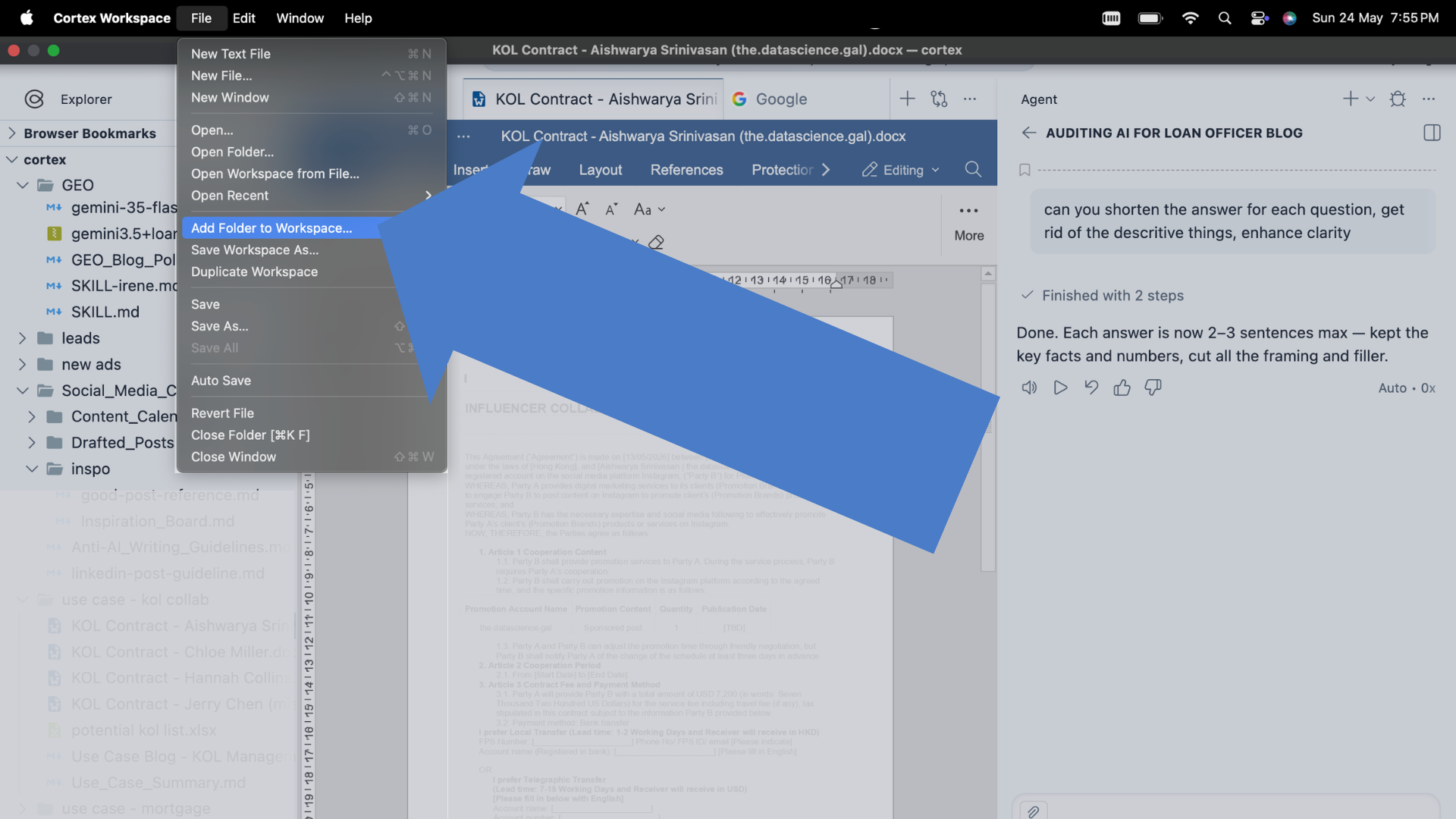
How do I add a folder to an existing workspace?
Click File → Add Folder to Workspace in the top-left corner.
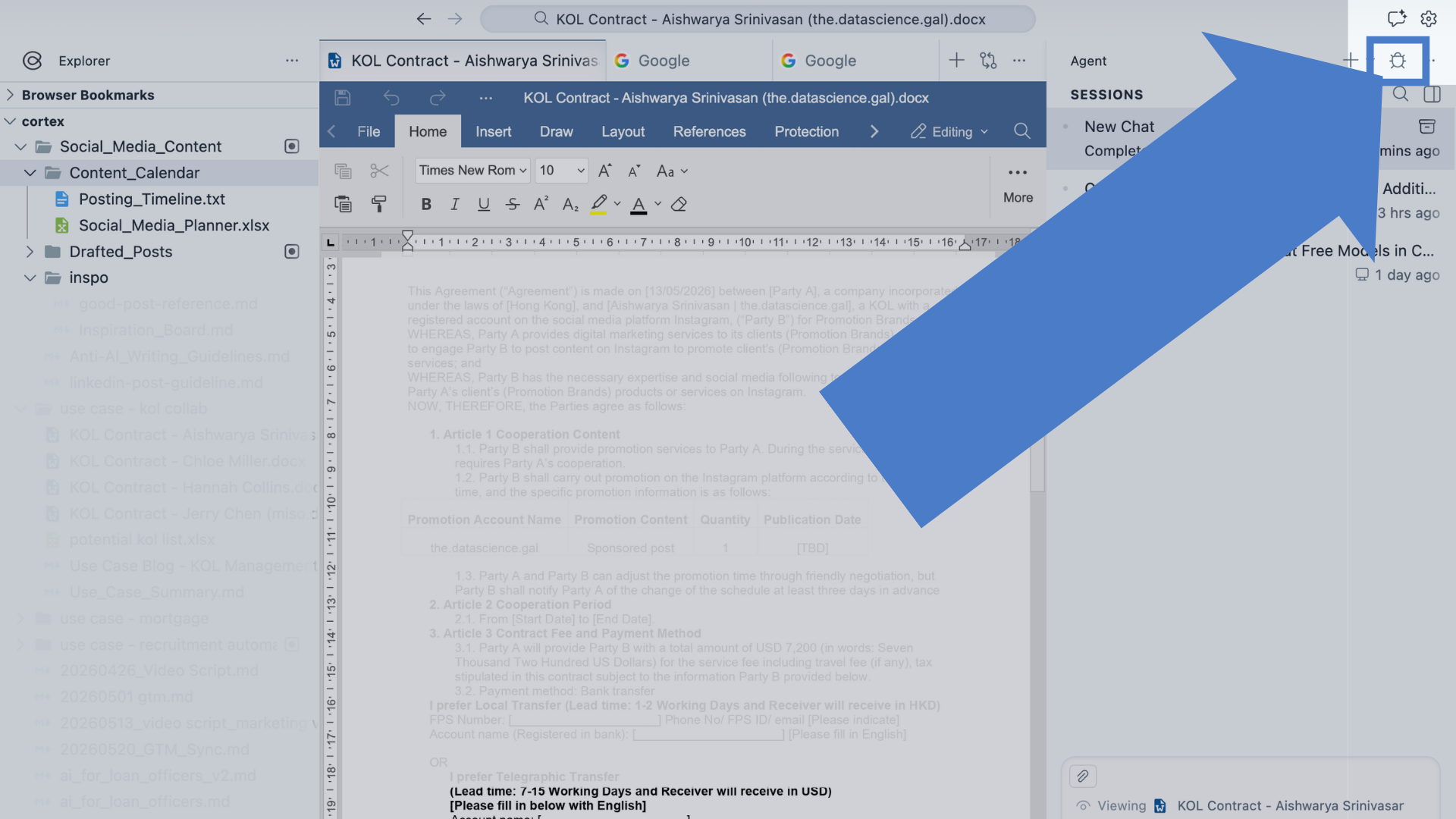
How do I report bugs?
Click the bug icon in the top-right corner.
How do I return to the welcome page?
Click the Cortex logo in the top-left corner.
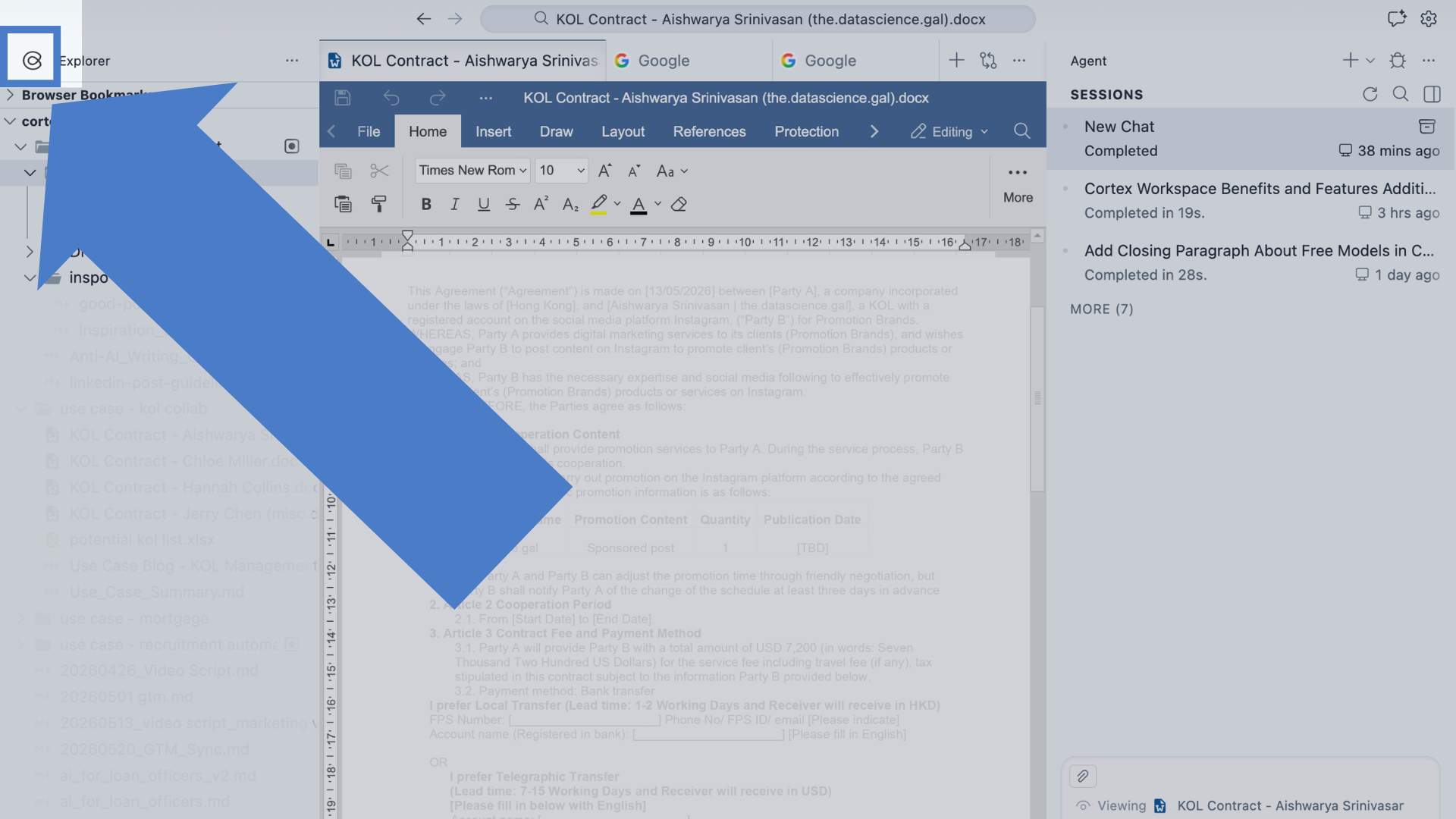
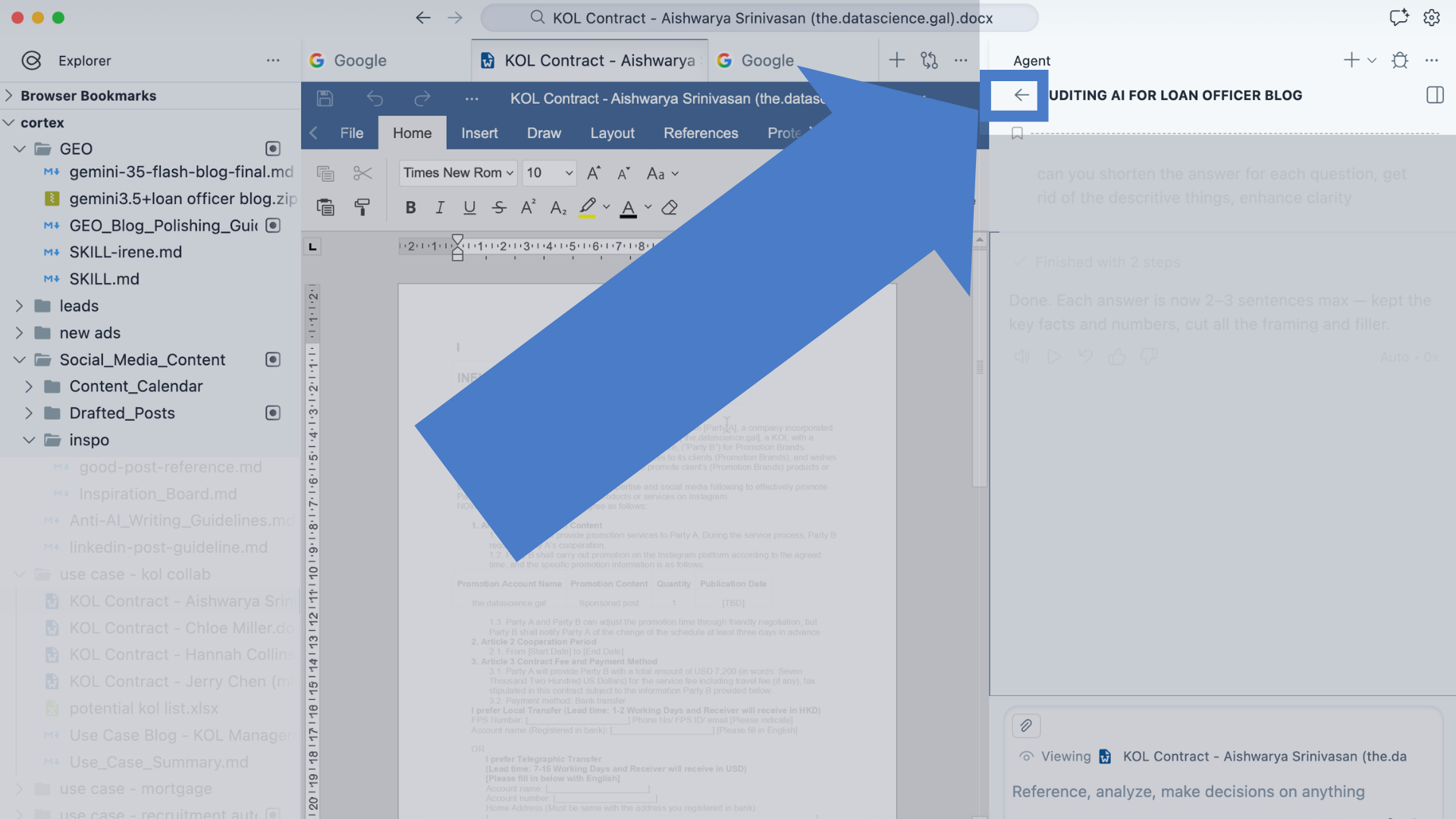
How do I see my past chat sessions or open a new one?
Click the back arrow button at the top of your current chat session to view your history or start a new conversation.
Keep in mind that because workspaces are isolated, your chat sessions are not shared across different projects; you will only see the history belonging to your current workspace.
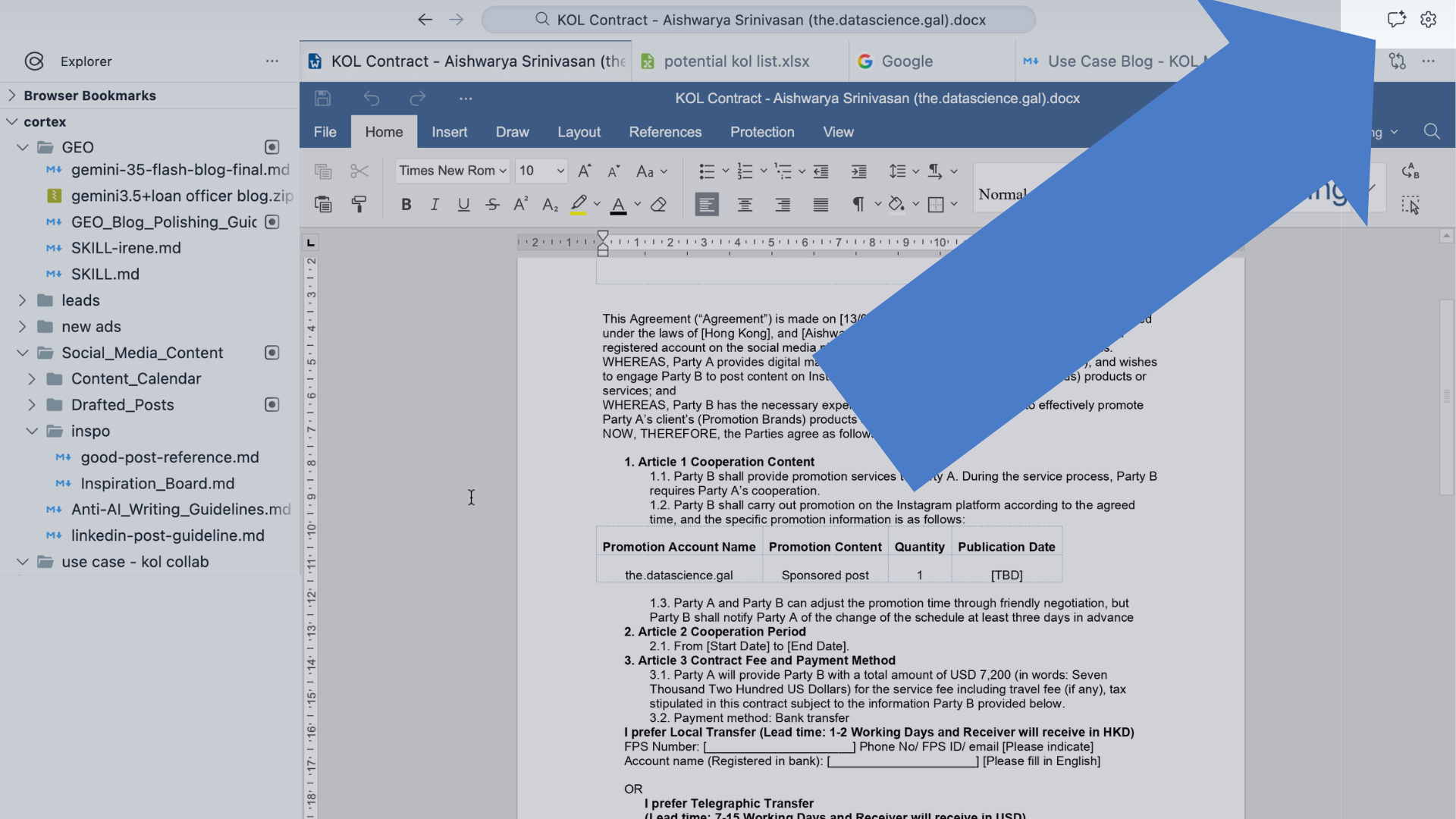
What should I do if the right panel (the AI part) is missing?
Click the chat button in the top-right corner to toggle the AI panel back open.
Still have questions? Please reach out to our support team for help:
- WhatsApp: +1 (650) 542 6397
- Email: support@withcortex.ai
Ready to automate your workflows?
See how Cortex AI agents can handle your document processing, data extraction, and more.