Cortex AI Workspace for Accountants
Cortex is the AI workspace built for accountants who need up to 90% less time on invoices and bank rec. Built exclusively for accountants, it processes everything locally on your PC or Mac with zero cloud risk.
Month-end workflow
Four Steps of Accounting
Built for expert accountants who demand flawless execution.
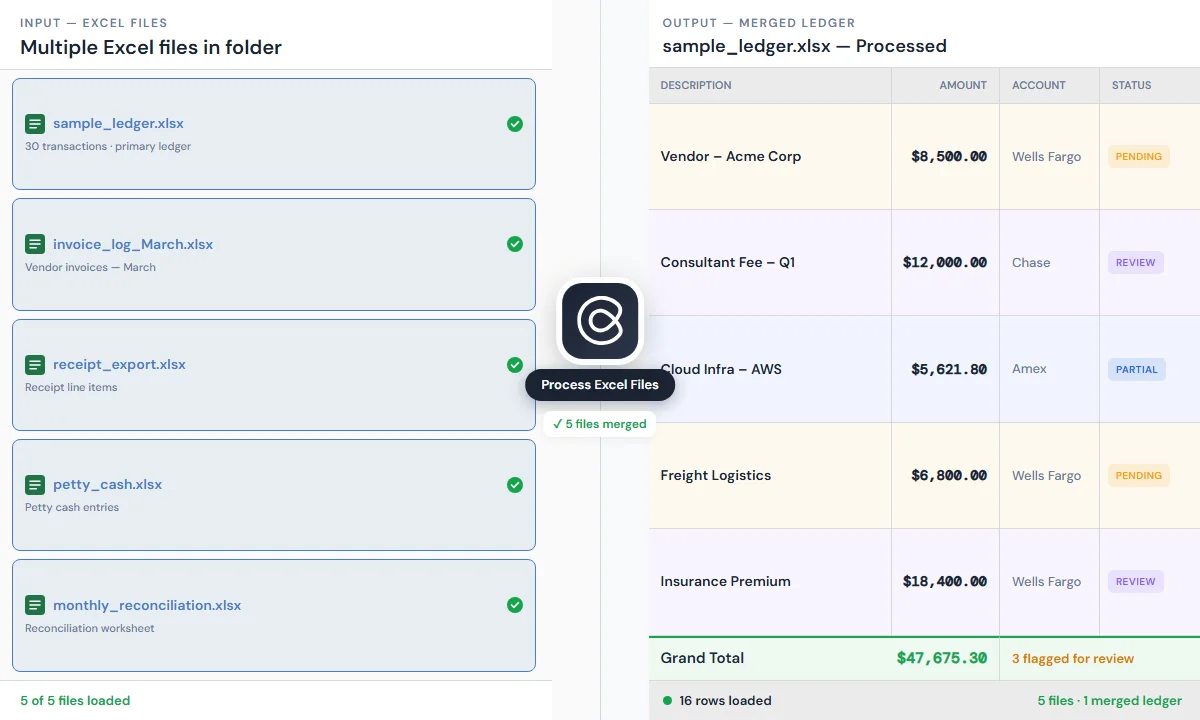
“Go through every file in this folder. Extract each transaction's vendor, date, amount, and description. Categorise by expense type using standard bookkeeping categories. Output an Excel sheet sorted by date.”
Bookkeeping
Extract messy invoices and receipts from Outlook, emails, or folders instantly. Cortex organizes them exactly how you want.
Expert-level extended tasks
“Flag any transaction over $5,000 and add a note that it needs client confirmation.”
“Separate personal expenses from business expenses based on the vendor names.”
“Format the ledger for readability: bold headers, freeze the top row, and add category subtotals.”
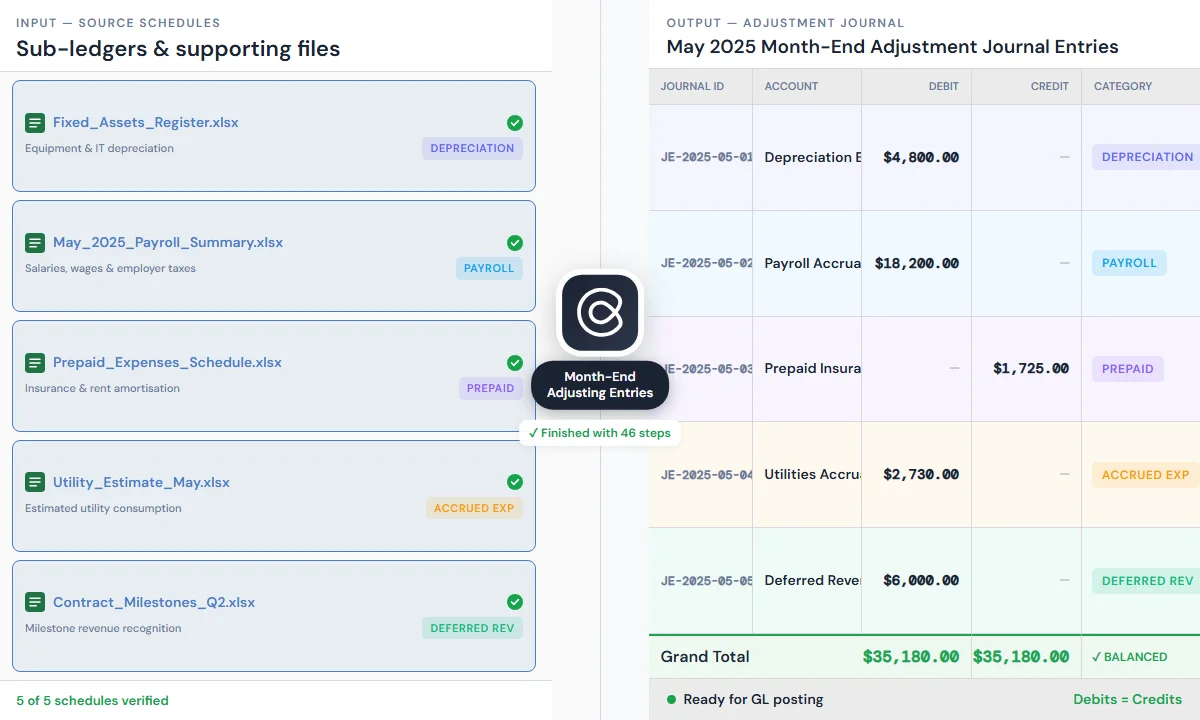
“Review the ledger and post all standard month-end adjustments: depreciation on fixed assets, accrued payroll, and prepaid expense amortisation. Show each journal entry with account, debit, credit, and memo.”
Adjustments
From depreciation to prepaid amortisation, Cortex applies your firm's specific adjustment rules consistently to every ledger. No more repetitive manual entries.
Expert-level extended tasks
“Calculate and post monthly depreciation for every fixed asset in the asset register using straight-line method.”
“Accrue wages and employer taxes for the last days of the month that haven't been paid yet.”
“Spread prepaid insurance, rent, and subscriptions across the correct months and post this period's share.”
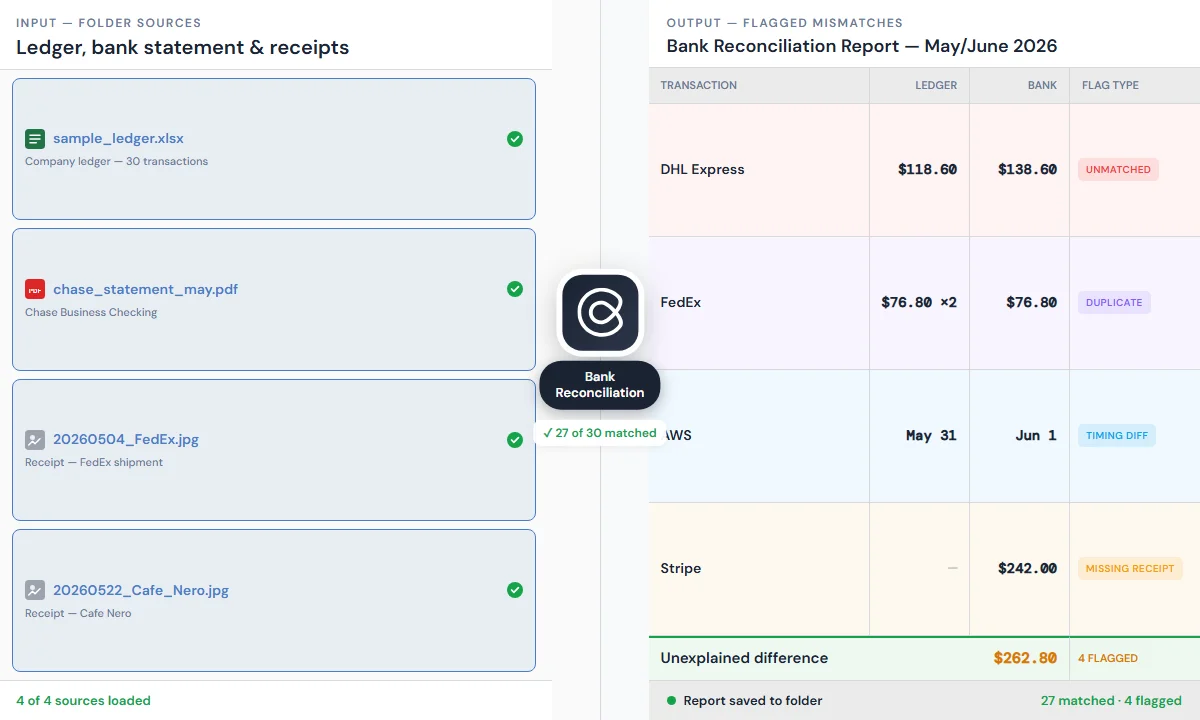
“Reconcile the ledger against the bank statement in this folder. For every transaction that doesn't match, flag it and note whether it's unmatched, a duplicate, a timing difference, or missing a receipt.”
Reconciliation
Match your ledger against bank statements, vendor records, or payment app exports in one click. Cortex automatically flags missing receipts, duplicates, and timing differences for your review.
Expert-level extended tasks
“For the unmatched transactions, check if any appear in the ledger under a slightly different date or amount.”
“Reconcile WeChat Pay and Alipay transaction exports against the ledger and flag any items only on one side.”
“Summarise the reconciliation: total matched, total flagged, and the categories of issues found.”
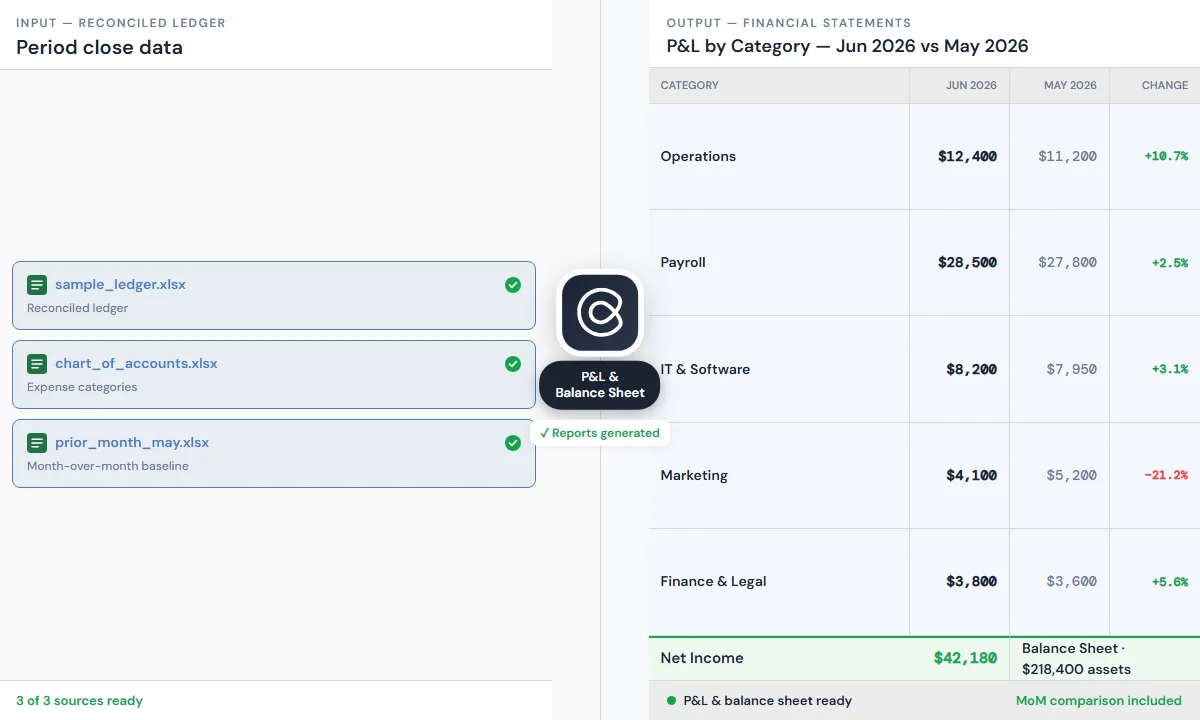
“Using the reconciled ledger, generate a profit-and-loss statement and balance sheet for this period. Group expenses by category and show month-over-month comparison.”
Reporting
Lock the period with confidence. Cortex instantly assembles balance sheets, P&L statements, and custom management reports directly on your machine—leaving you in full control to review and approve before anything is final.
Expert-level extended tasks
“Summarise this month's revenue and expenses by category and highlight any category that changed more than 20% from last month.”
“Build a balance sheet as of month-end showing assets, liabilities, and equity with subtotals for each account group.”
“Create a one-page management summary with P&L, cash position, and top five expense categories for the board.”
Skills & Automations
Skills
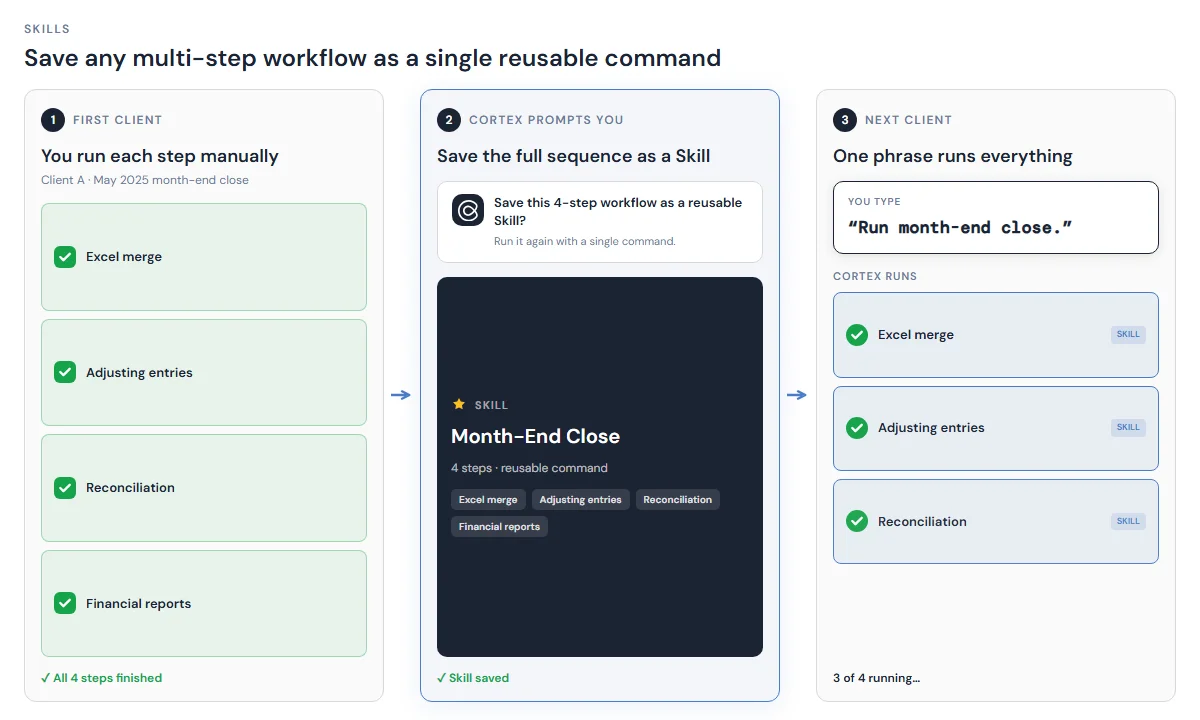
Skills let you save any multi-step workflow as a single reusable command. After closing your first client, Cortex prompts you to save the full four-step sequence as a Skill. The next client runs with one phrase: "Run month-end close."
Automations
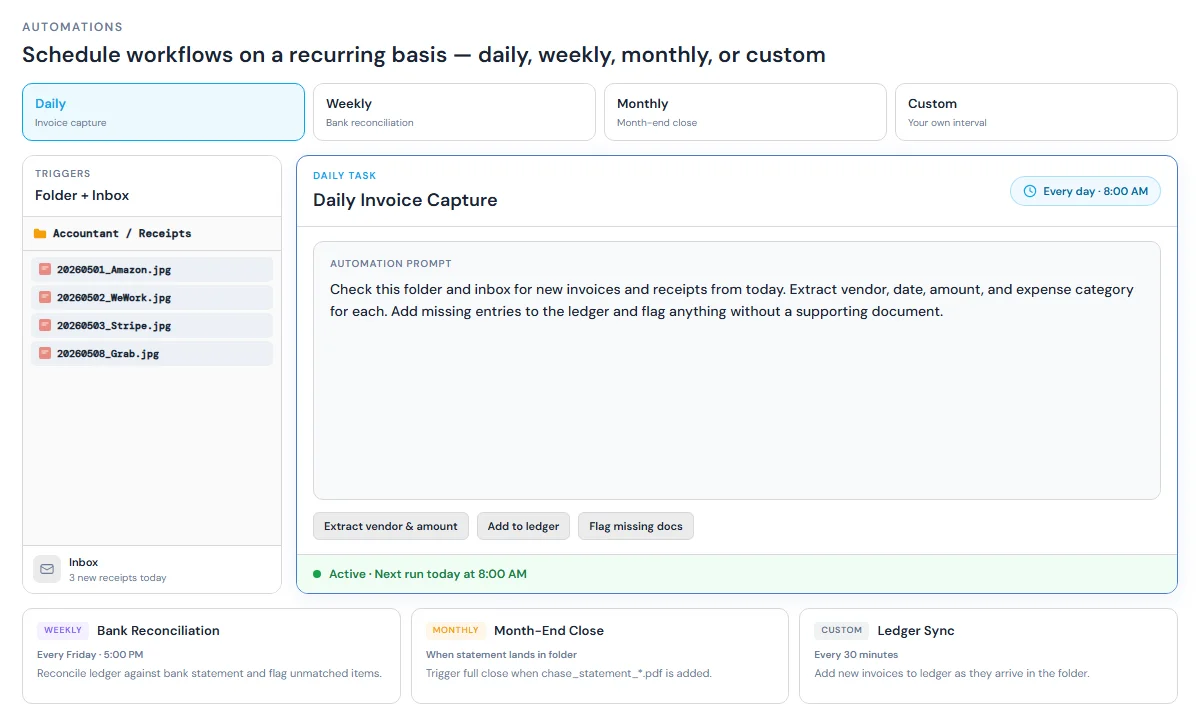
Automations schedule workflows on a recurring basis — daily invoice capture, weekly bank rec, or month-end close triggered when a new statement lands in a folder.
Daily task
“Check this folder and inbox for new invoices and receipts from today. Extract vendor, date, amount, and expense category for each. Add missing entries to the ledger and flag anything without a supporting document.”
Weekly task
“Reconcile this week's bank and card transactions against the ledger. Match each line, flag unmatched items, duplicates, and timing differences, and summarise exceptions for review.”
Monthly task
“Run month-end close: post standard accruals (depreciation, payroll accrual, prepaid amortisation), reconcile bank statements, and generate P&L and balance sheet for the period.”
Connectors for Accounting
Powered by MCP and browser automation, Cortex operates your entire accounting stack with zero IT integration. Just state your workflow in plain English to connect instantly.





Why Accountants Use Cortex
Local by design
All files stay on your device. No cloud upload, no data leaving your machine — client confidentiality stays intact.
Your folders, your workflow
Works with your existing folder structure. No uploads — open a folder and Cortex reads what's in it.
Zero integration setup
Cortex fills web-based accounting platforms directly, without API keys or IT support.
Built for real documents
Scanned PDFs, inconsistent naming, mixed file types — Cortex handles messy documents at scale, not clean demos.
Frequently Asked Questions
Common questions about Cortex as a modern AI solution for accountants.
A modern AI solution for accountants processes invoices, reconciles bank statements, and fills accounting software like QuickBooks or Xero — without uploading client files to the cloud. Cortex Workspace runs locally on your device: open a client folder, describe the task in plain language, and the AI executes bookkeeping and reconciliation while data stays on your machine.
Yes. Cortex opens your accounting platform in the browser and fills data the same way you would. No API integration or IT setup needed. It works with QuickBooks Online, Xero, NetSuite, and any other web-based accounting system.
Yes. Client files live in a local project folder on your machine, and edits save there. Cortex does not package your whole project to the cloud — only information needed for an AI request is sent for processing. Related cloud-side data is deleted within 30 days. Calls go through a neutral inference layer, and your data is not used to train models.
PDFs (text and scanned), JPEGs and PNGs (receipts, photos of invoices), Excel and CSV files, and Word documents. It handles inconsistent naming, mixed formats, and documents in multiple languages.
Cortex shows you the output before anything is submitted. You review, correct any miscategorisations, and approve. Nothing goes into your accounting system until you say so.
Yes. Once you've dialled in a workflow, Cortex prompts you to save it as a Skill. After that, the entire process runs from a single command with no re-prompting needed.
Load your bank statement and ledger into the same Cortex session. Cortex matches transactions across both and returns a flagged report of discrepancies: unmatched entries, duplicates, timing differences, and missing receipts. You review the exceptions — not every row. You can also customize your own reconciliation workflow with Cortex.
Both. Sole traders use it for their own books. Accounting firms use it to process multiple client folders in sequence. The workflow is the same either way.
Cortex understands standard chart of accounts categories, common expense types, bookkeeping terminology, and reconciliation logic. You can also give it your firm's specific categories and it will apply them consistently.
Get Cortex Free
Download Cortex, open your accounting folder, and run one of the workflows above.