Cortex Workspace for Accountants
A modern AI solution for accountants: up to 90% less time on invoices and bank rec. Client files stay local; nothing gets uploaded.
What you can do with Cortex
This modern AI solution runs on your machine — open a client folder, describe the task, and Cortex handles bookkeeping and reconciliation locally, across messy documents, and into the tools you already use.

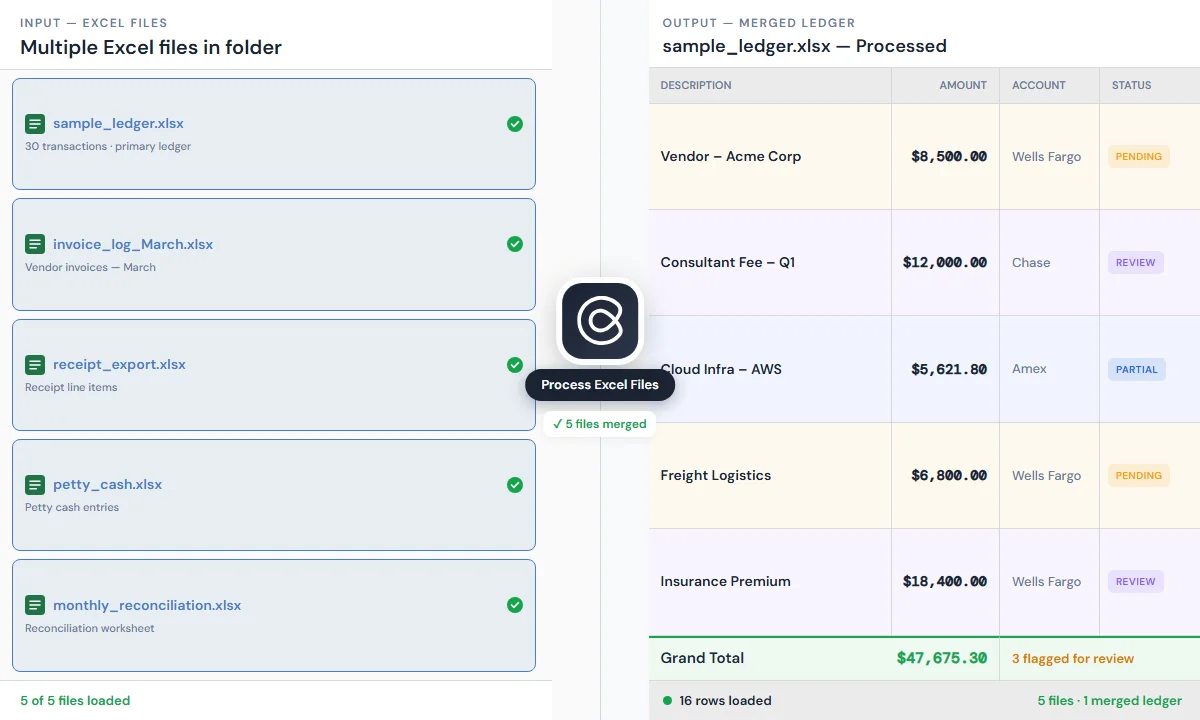
Go through every file in this folder. Extract each transaction details including vendor, date, amount, and description. Categorise by expense type using standard bookkeeping categories. Output a Excel sheet sorted by date.
Bookkeeping
Turn 100+ messy PDFs into a clean Excel ledger — on your machine
Cortex runs directly on your computer. Point it at a folder of bank statements, scanned receipts, vendor invoices, and export files — even with inconsistent naming, mixed formats, and multilingual documents. It reads everything, extracts structured data, and saves a familiar Excel ledger locally. No uploads. No shuffling files between tools.
Try this prompt
“Go through every file in this folder. Extract each transaction details including vendor, date, amount, and description. Categorise by expense type using standard bookkeeping categories. Output a Excel sheet sorted by date.”
Use cases
Flag transactions for partner review
“Flag any transaction over $5,000 and add a note that it needs client confirmation.”
Large items needing sign-off are flagged automatically; no row-by-row scanning.
Split personal and business spend
“Separate personal expenses from business expenses based on the vendor names.”
Mixed expenses in one folder get separated without rebuilding the ledger.
Format for client review
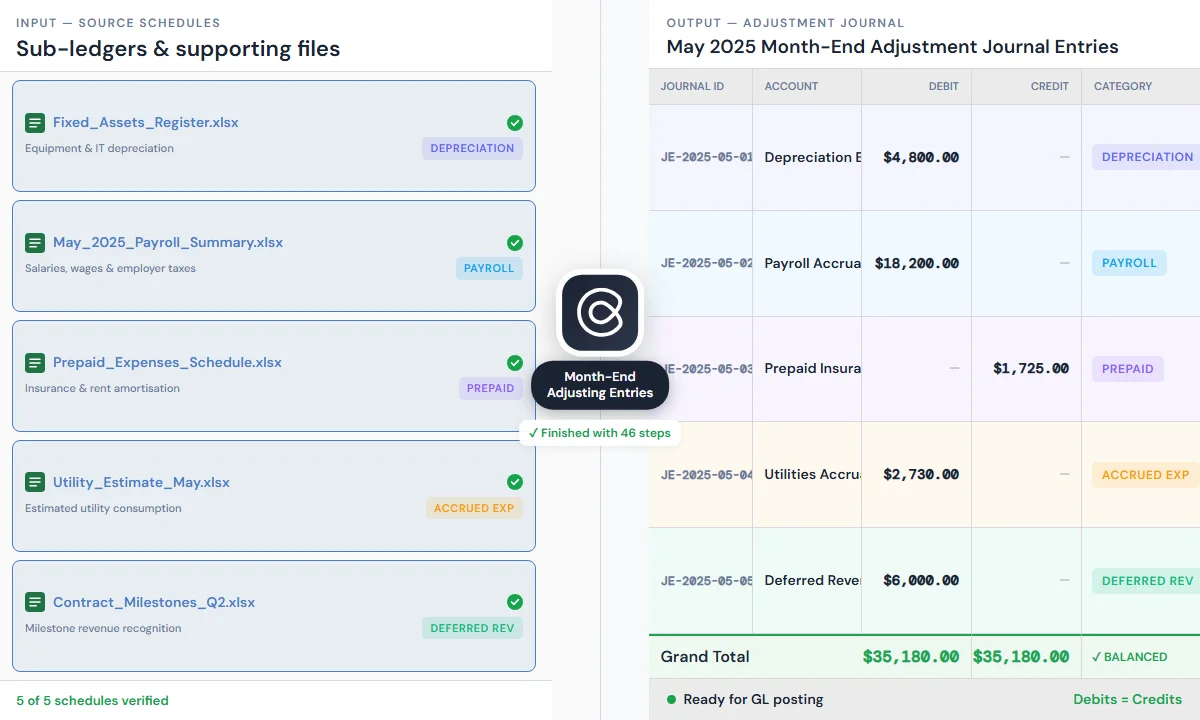
“Format the ledger for readability: bold headers, freeze the top row, and add category subtotals.”
Presentation-ready output for client or partner approval, without reformatting in Excel.

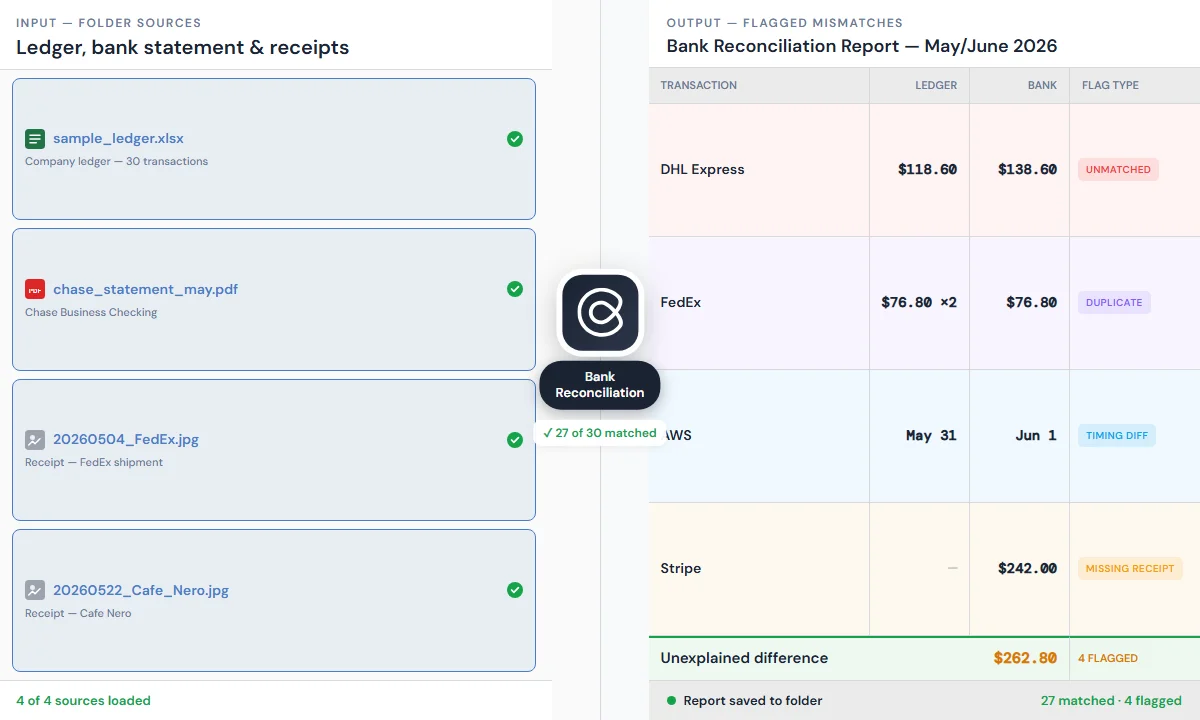
Reconcile the bank statement in the folder and the ledger you just created. For every transaction that doesn't match, flag it and note whether it's unmatched, a duplicate, a timing difference, or missing a receipt.
Reconciliation
Reconcile bank statements and catch every discrepancy
Load a bank statement and ledger into the same session. Cortex matches transactions across both, identifies every discrepancy, and tells you what kind of issue each one is — unmatched, duplicate, timing difference, or missing receipt.
Try this prompt
“Reconcile the bank statement in the folder and the ledger you just created. For every transaction that doesn't match, flag it and note whether it's unmatched, a duplicate, a timing difference, or missing a receipt.”
Use cases
Find near-matches
“For the unmatched transactions, check if any of them appear in the ledger under a slightly different date or amount.”
Near-matches that are easy to miss in manual reconciliation get surfaced.
Surface audit risks
“List all round-number transactions above $1,000 that don't have a receipt attached.”
Audit risk items appear before month-end close, not during the review.
Summarise exceptions
“Summarise the reconciliation: total matched, total flagged, and the categories of issues found.”
A clear exception report: only what needs your judgment, not every row.

Take the transactions from the ledger and enter them into QuickBooks under the correct accounts.
Browser & Connectors
Connect QuickBooks, Xero, and email — no API setup
Cortex uses browser automation and MCP connectors to operate your accounting platforms the same way you would — filling QuickBooks, matching transactions in Xero, pulling invoices from Gmail. No API keys. No IT project. Data moves between systems without copy-paste.
Try this prompt
“Take the transactions from the ledger and enter them into QuickBooks under the correct accounts.”
Use cases
Reconcile in Xero
“Open Xero, go to the bank reconciliation screen, and match these transactions against the bank statement.”
Cross-platform reconciliation without switching tabs and retyping amounts.
Capture inbox invoices
“Find all invoice attachments in my inbox from the last 30 days, download them into the invoices folder, and list them in a table with vendor, date, and amount.”
Email attachments land in the right folder with a summary table; no manual download loop.
Push to NetSuite
“Push the approved ledger to NetSuite under the correct client accounts.”
ERP entries go in from local files, without CSV export and import.
Build Your Own Accounting Workflow
Cortex isn't limited to invoices and reconciliation. Any repetitive accounting task that involves reading documents, moving data, or filling forms can be turned into a Cortex workflow. Here are prompts you can use or adapt:
Prepare for tax season
“Go through the receipts folder, identify all expenses that qualify as business deductions, and group them by tax category.”
Client reporting
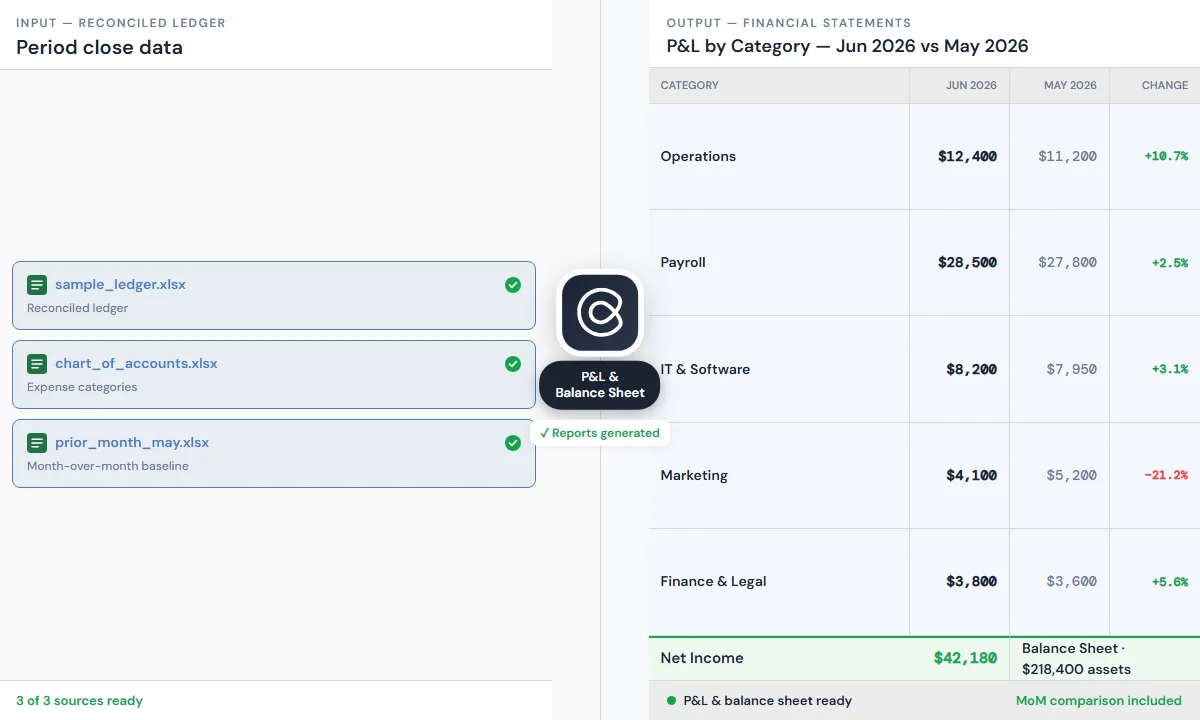
“Summarise this month's spending by category and create a one-page expense report I can send to the client.”
Audit preparation
“Check every transaction above $500 in this ledger and confirm there is a matching document in the receipts folder. Flag any that are missing.”
Each of these is a starting point. Add your firm's specific account codes, naming conventions, or reporting formats and Cortex will apply them consistently across every client.
Run It Once, Repeat Forever
Skills
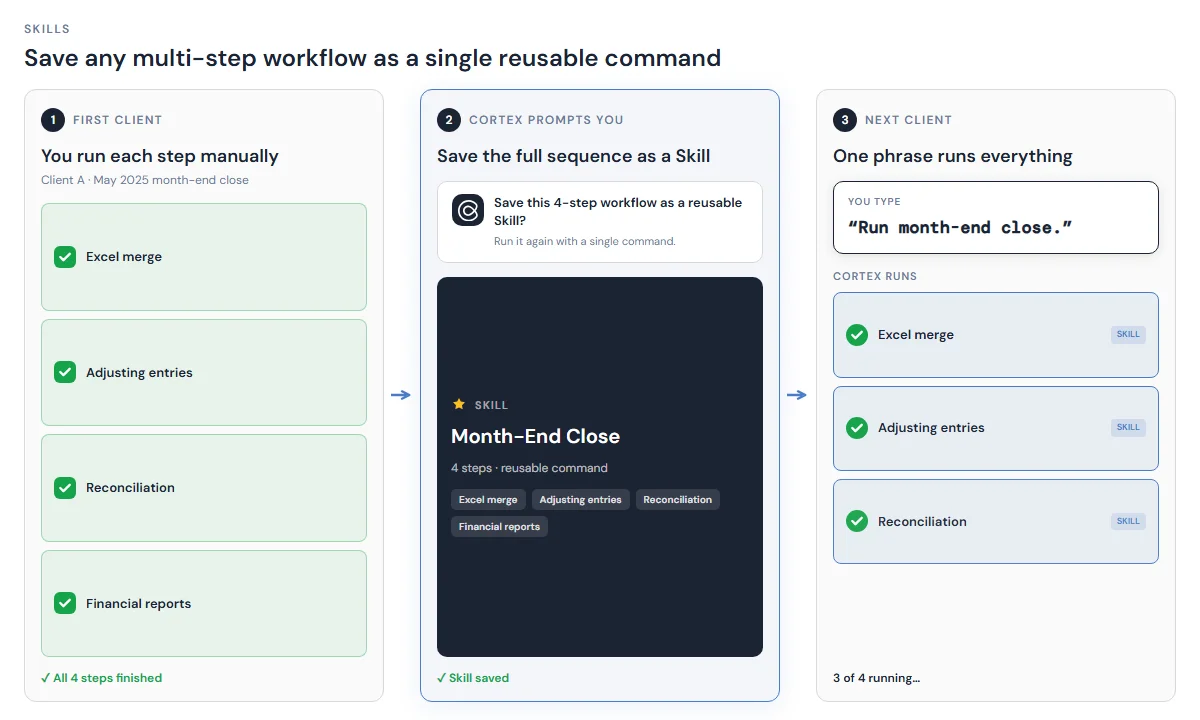
Skills let you save any multi-step workflow as a single reusable command. After processing your first client folder, Cortex prompts you to save the sequence as a Skill. The next client folder runs with one word: "Run bookkeeping."
Automations
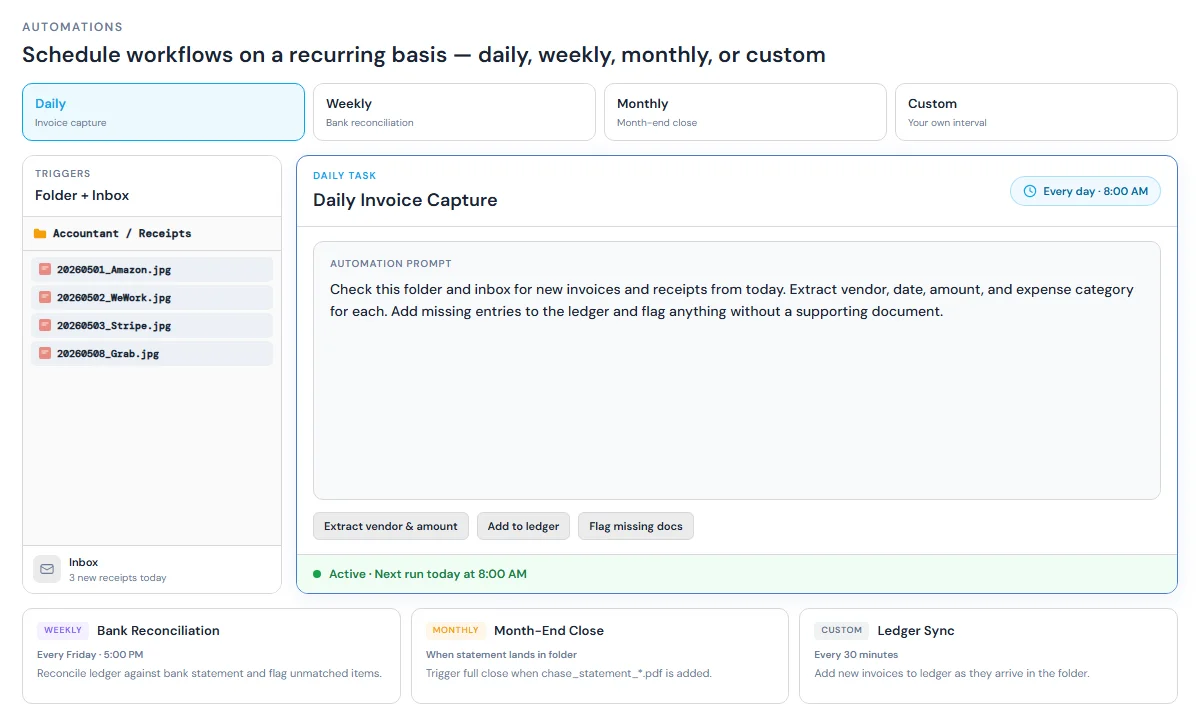
Automations let you schedule workflows on a recurring basis — daily, weekly, or triggered by a new file appearing in a folder.
These aren't integrations you need IT to configure. You describe the workflow in plain English, Cortex learns it, and it runs on your schedule.

Connectors for Accounting
Pull data from your accounting stack and push clean entries back where your team works — no manual exports, no copy-pasting, no context switching.
Why Accountants Use Cortex
All files stay on your device. No cloud upload. No data leaving your machine. Client confidentiality stays intact.
Works with your existing folder structure. No need to upload anything. Open a folder and Cortex reads what's in it.
No integration setup required. Cortex fills web-based accounting platforms directly, without API keys or IT support.
Handles messy documents at scale. Scanned PDFs, inconsistent naming, mixed file types — Cortex works with real-world documents, not clean demos.
Frequently Asked Questions
Common questions about Cortex as a modern AI solution for accountants.
A modern AI solution for accountants processes invoices, reconciles bank statements, and fills accounting software like QuickBooks or Xero — without uploading client files to the cloud. Cortex Workspace runs locally on your device: open a client folder, describe the task in plain language, and the AI executes bookkeeping and reconciliation while data stays on your machine.
Yes. Cortex opens your accounting platform in the browser and fills data the same way you would. No API integration or IT setup needed. It works with QuickBooks Online, Xero, NetSuite, and any other web-based accounting system.
All files stay on your device. Cortex processes documents locally and nothing is uploaded to an external server. You can use it on sensitive client files without any data leaving your machine.
PDFs (text and scanned), JPEGs and PNGs (receipts, photos of invoices), Excel and CSV files, and Word documents. It handles inconsistent naming, mixed formats, and documents in multiple languages.
Cortex shows you the output before anything is submitted. You review, correct any miscategorisations, and approve. Nothing goes into your accounting system until you say so.
Yes. Once you've dialled in a workflow, Cortex prompts you to save it as a Skill. After that, the entire process runs from a single command with no re-prompting needed.
Load your bank statement and ledger into the same Cortex session. Cortex matches transactions across both and returns a flagged report of discrepancies: unmatched entries, duplicates, timing differences, and missing receipts. You review the exceptions — not every row. You can also customize your own reconciliation workflow with Cortex.
Both. Sole traders use it for their own books. Accounting firms use it to process multiple client folders in sequence. The workflow is the same either way.
Cortex understands standard chart of accounts categories, common expense types, bookkeeping terminology, and reconciliation logic. You can also give it your firm's specific categories and it will apply them consistently.
Get Cortex Free
Download Cortex, open your accounting folder, and run one of the workflows above.